When using Claude Code, it’s a good idea to work on a plan before moving straight to code. This is especially true if there’s any real substance to the changes — a new feature, a refactor that touches multiple files, or anything where the AI might make assumptions you’d rather make yourself.
Claude Code has a built-in mode for exactly this. It’s called Plan Mode, and it’s one of the most underused features I see when people talk about their workflows.
But here’s the thing: as magical as it can be to tell Claude to build something and just trust that it will do a great job, I always prefer to know what Claude will do. Plan Mode isn’t enough on its own because Claude doesn’t actually tell you everything. That’s why I want to share one prompt that will help you use it even better.
First — what is Plan Mode, anyway?
Plan Mode tells Claude to think and plan rather than act. Instead of immediately writing code, creating files, and running commands, Claude will outline its approach — what it intends to change, where, and why. It won’t touch your codebase until you switch back to Act Mode and give it the green light.
You’ve got two options:
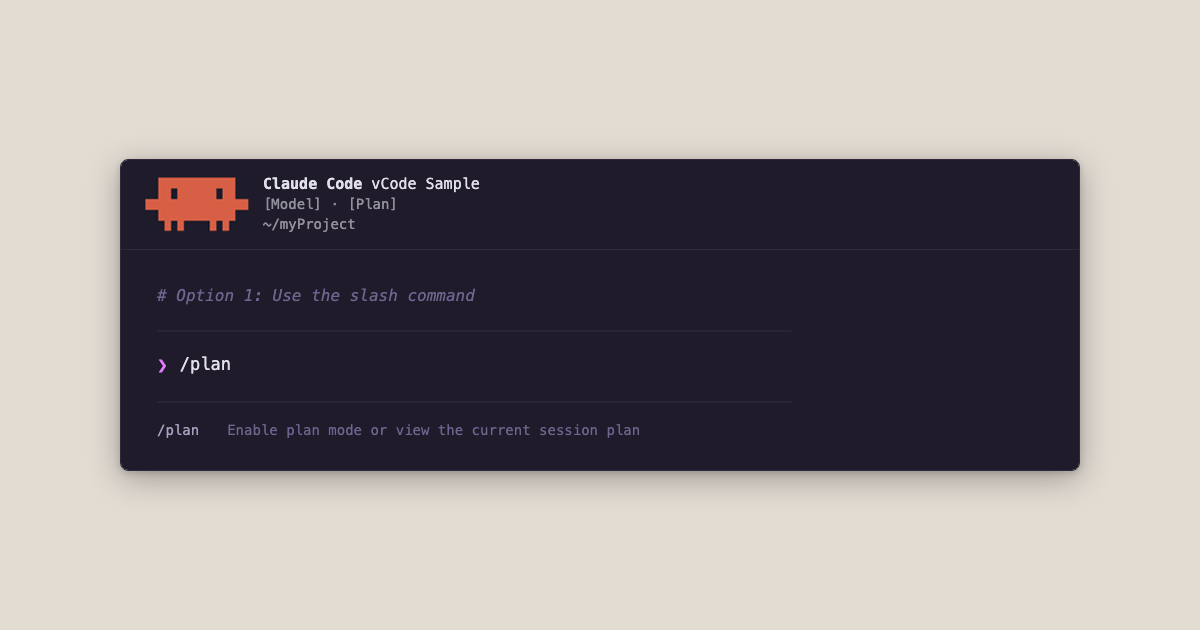
# Option 1: Use the slash command────────────────────────────────────────────────────────────────────────────────❯ /plan──────────────────────────────────────────────────────────────────────────────── /plan Enable plan mode or view the current session planOr, while you’re typing a message, press shift+tab to toggle between Plan and Act mode before sending. You’ll see the mode indicator change in the interface.
# Option 2: Toggle with shift+tab before sending your message────────────────────────────────────────────────────────────────────────────────❯ Let's add a newsletter subscription to the footer of all pages──────────────────────────────────────────────────────────────────────────────── ⏸ plan mode on (shift+tab to cycle)That’s it. No configuration needed. It’s built right in.
If you’re new to planning before coding, I suggest you use Plan Mode at the start of almost every task that’s more than a one-liner. A few examples:
The value is simple: you get to review the strategy before any code changes. You can redirect, refine, or completely rethink the approach while it’s still just words on a screen. Much cheaper than undoing a dozen file changes you didn’t want.
Here’s where it gets good. Once Claude has laid out its plan, most people either say “looks good, do it” or manually read through the plan and offer corrections. Both of those work. But I’ve found a way that seems to work better for my brain. Rather than consuming all of Claude’s plan in a single pass, I have Claude break it up for me and surface the invisible parts of the plan.
Here’s the base prompt I use:
✻ Brewed for 30s────────────────────────────────────────────────────────────────────────────────❯ Walk through every decision or assumption, one by one, that you made in the plan. Ask me one at a time to either A) confirm, B) change, or C) remove the assumption or decision.────────────────────────────────────────────────────────────────────────────────In practice, I tweak the language depending on when I use it. Claude’s default behavior after completing a plan is to present a few options for next steps — so that’s a natural place to slot this prompt in.
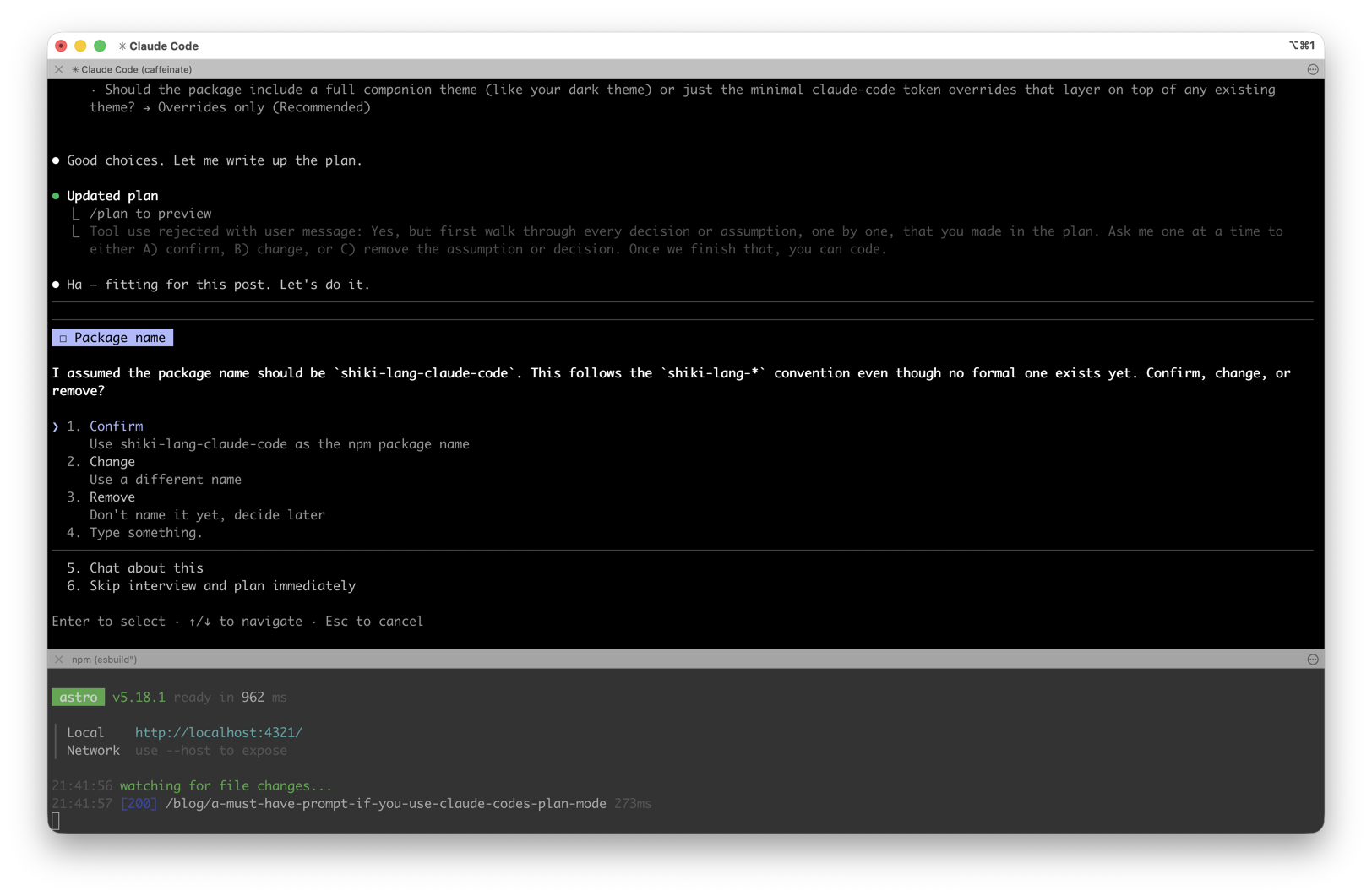
Case in point: the styled code blocks in this post. I had Claude build a custom Expressive Code language package for the blog, and used this exact technique to review its plan before writing any code. (You might notice Claude caught on to the meta-ness and said, “Ha — fitting for this post.” 😂)
Here’s what the process looks like so far:
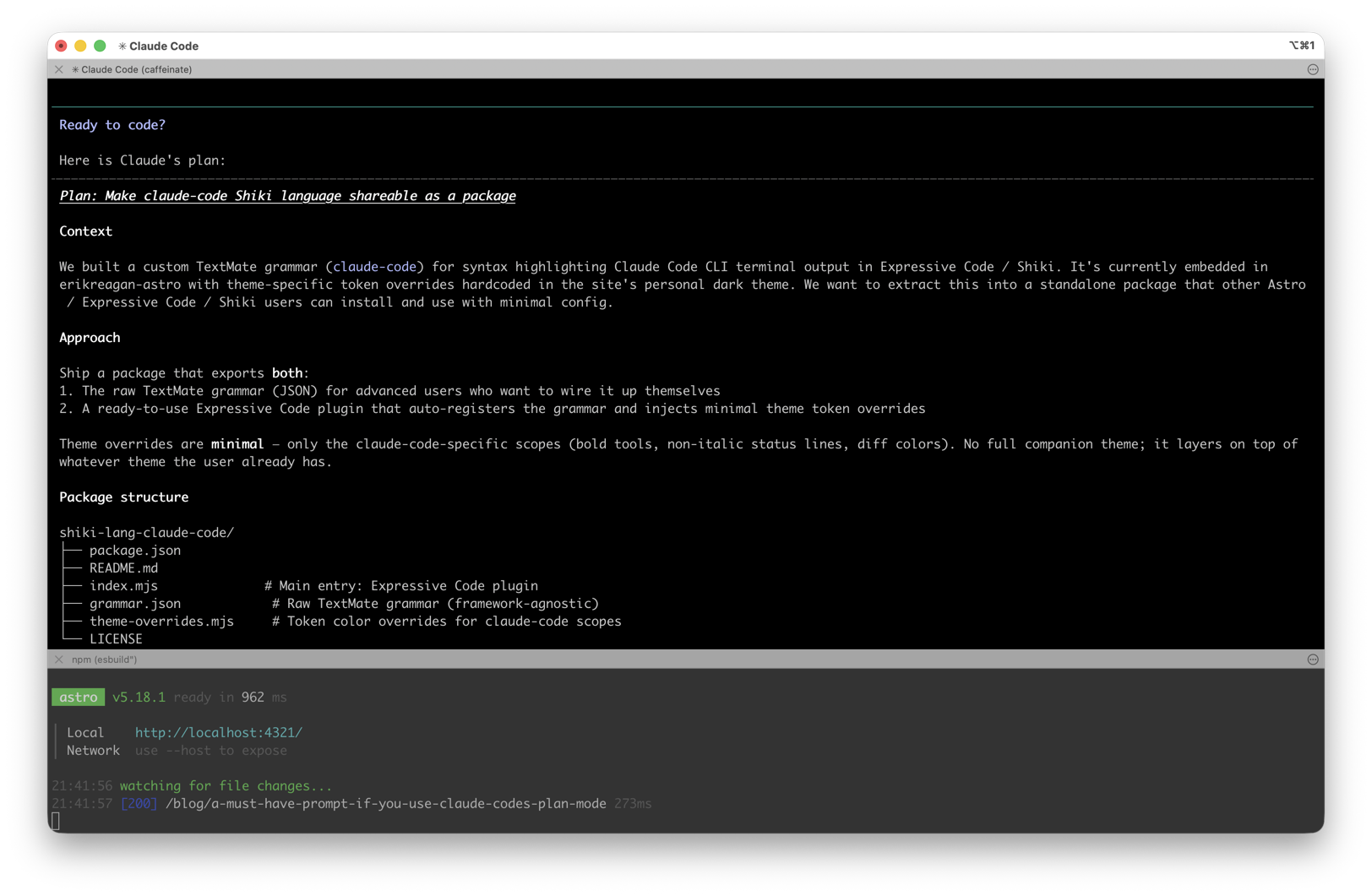
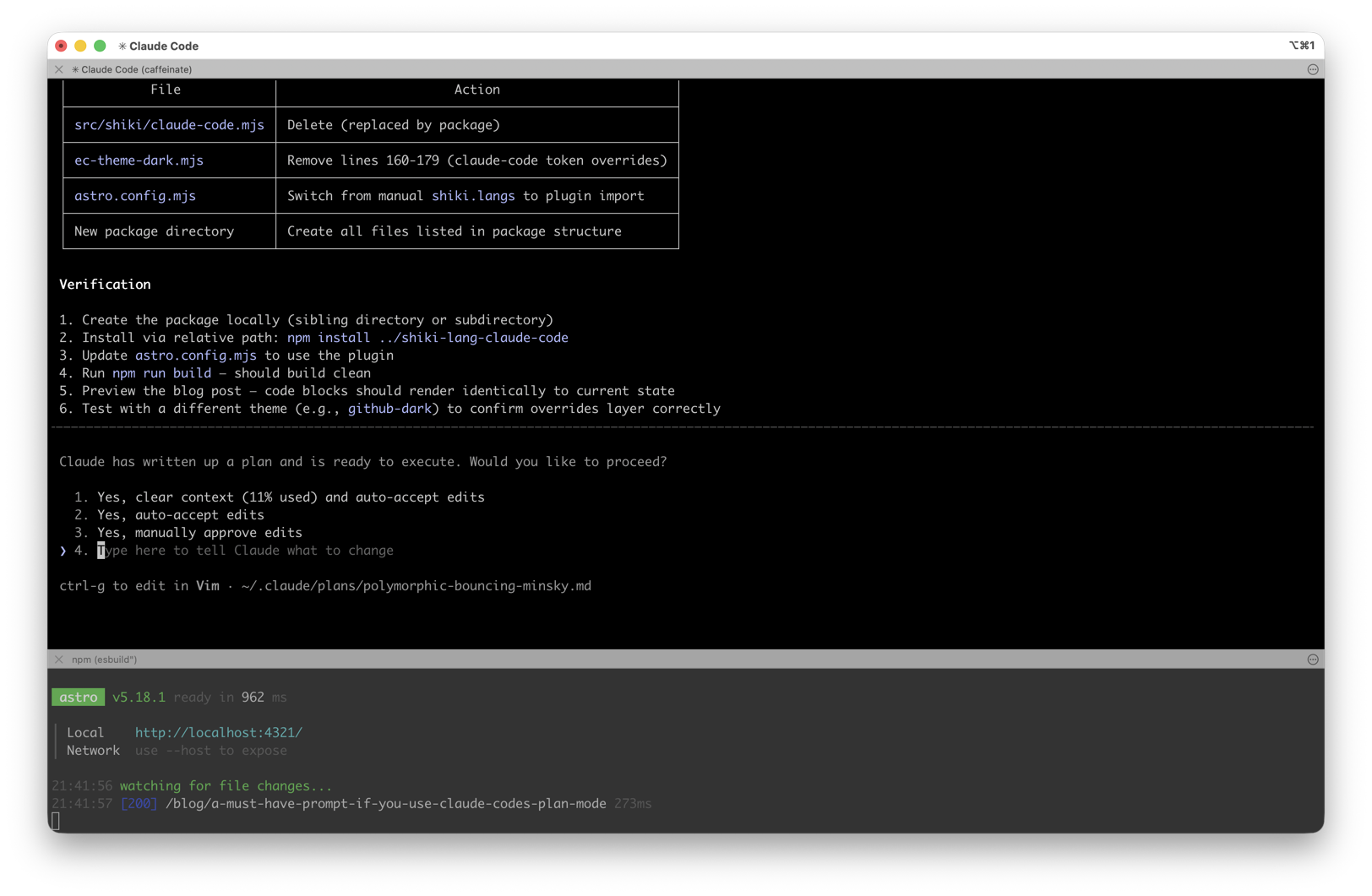
Claude presents a few options for what to do next. I pick the last one — the freeform response — and modify my base prompt. (“Yes, but first walk through…” seen here.)
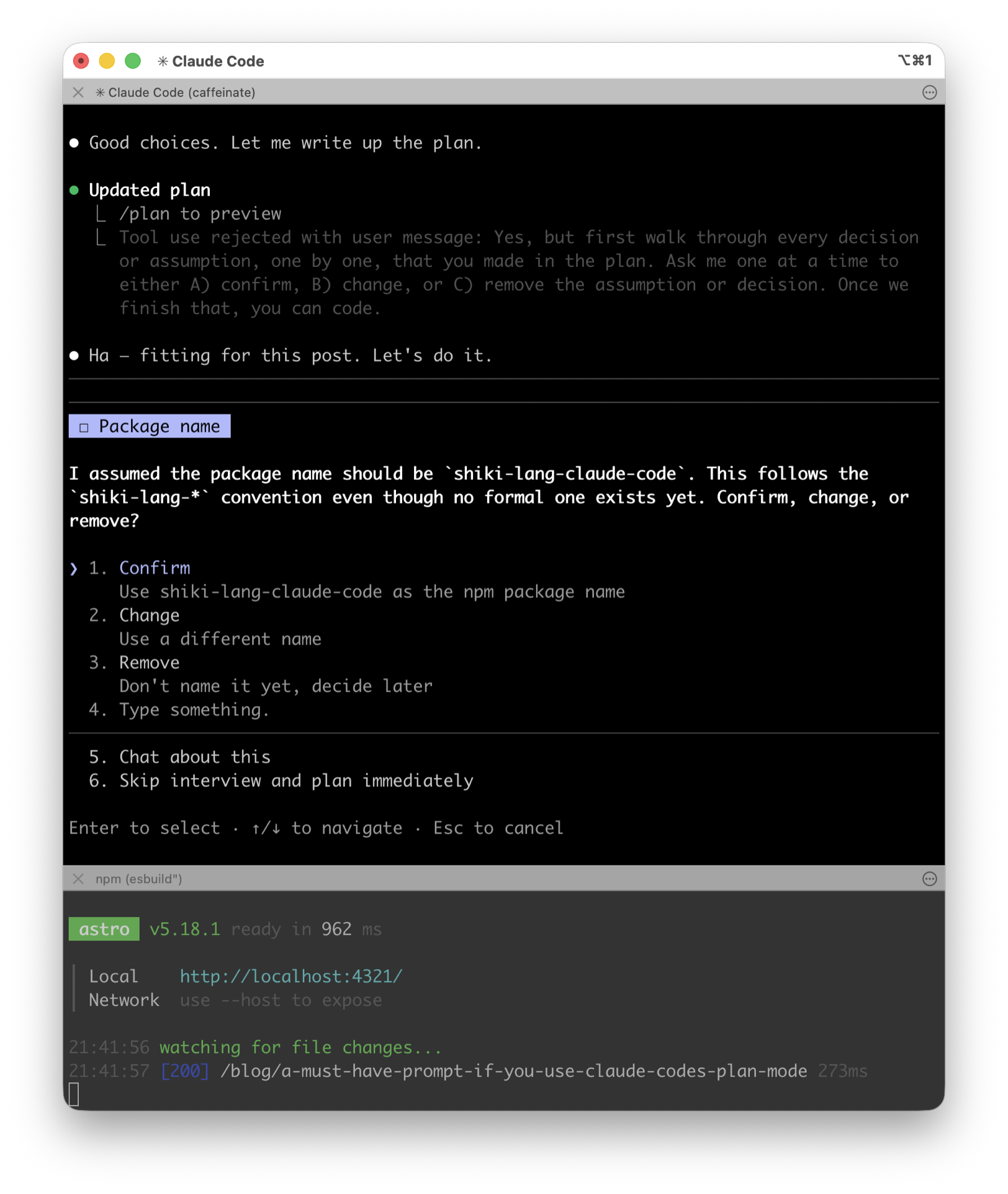
Claude will go back through its own plan and surface every choice it made — things like:
Map here instead of a plain object for the lookup. Confirm, change, or remove?”One at a time. You respond to each. It’s like a code review before the code exists.
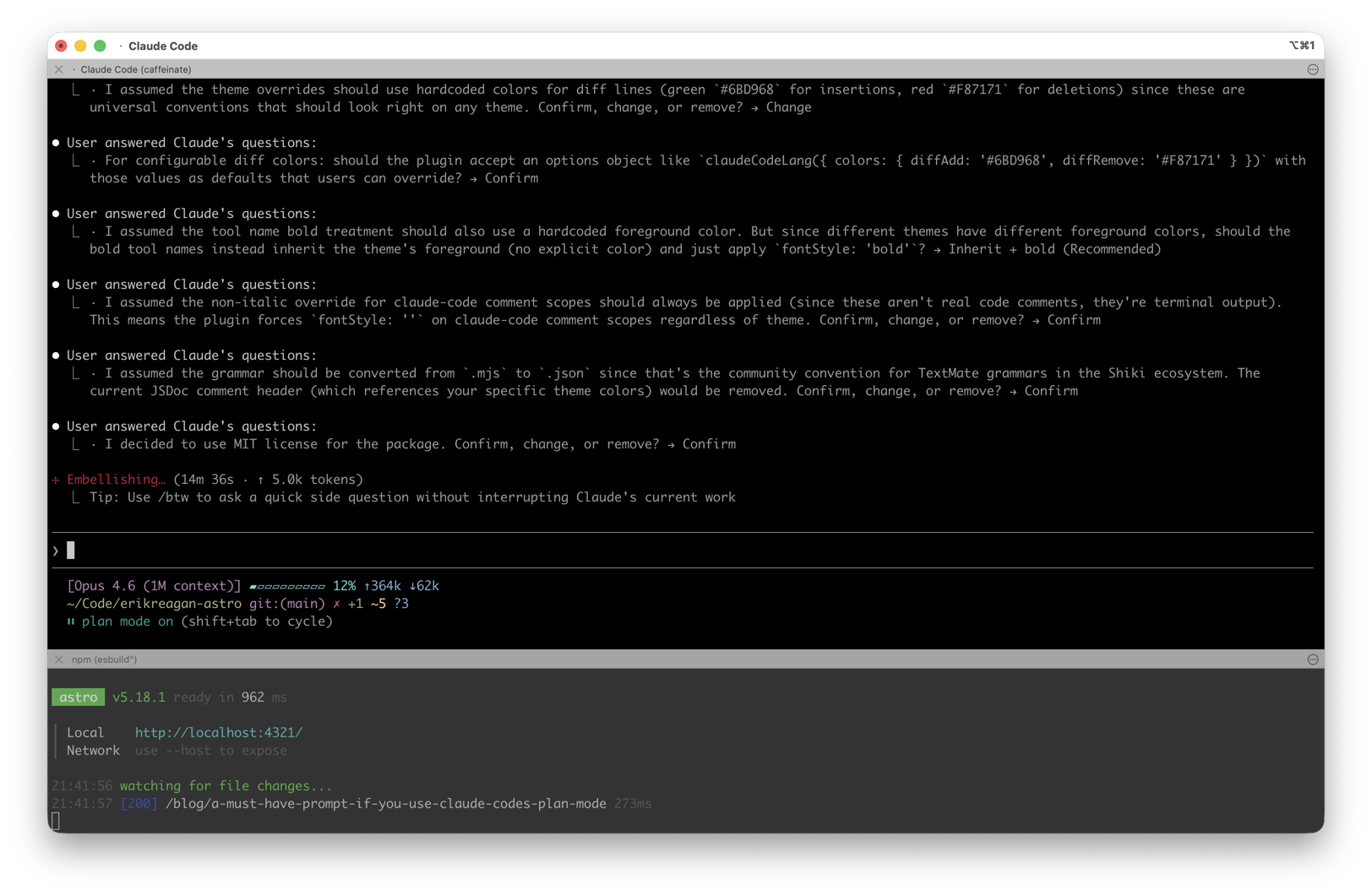
Most AI plans look reasonable at a glance. The structure is logical, the steps make sense, and it’s easy to say “yeah, go ahead.” But plans are full of small decisions — the kind you might not notice until you’re staring at a diff wondering why Claude chose approach X over approach Y.
This prompt forces those micro-decisions to the surface. It turns a passive review into an active conversation. And it catches the subtle stuff: an assumption about data structure, a choice to split something into a helper function, a decision about where state should live.
Walking through Claude’s reasoning helps me understand tradeoffs I might not have considered. Sometimes Claude’s assumption is better than what I had in mind. Sometimes it reveals that I hadn’t thought clearly enough about what I wanted.
Here’s how you can use this in practice:
# 1. Enter Plan Mode> shift+tab (toggle to Plan mode)
# 2. Describe what you want─────────────────────────────────────────────────────────────────────────────────❯ Add a newsletter subscription form to the footer with email validation and a success state─────────────────────────────────────────────────────────────────────────────────
# 3. Review the plan Claude produces# (Claude outlines its approach without touching any files)
# 4. Send the magic prompt─────────────────────────────────────────────────────────────────────────────────❯ Walk through every decision or assumption, one by one, that you made in the plan. Ask me one at a time to either A) confirm, B) change, or C) remove the assumption or decision.─────────────────────────────────────────────────────────────────────────────────
# 5. Respond to each decision (confirm/change/remove)
# 6. When done, toggle back to Act mode and let it execute
> shift+tab (toggle to Act mode)
─────────────────────────────────────────────────────────────────────────────────❯ Go ahead with the updated plan─────────────────────────────────────────────────────────────────────────────────
The whole thing adds a few extra minutes to a task. But the code that comes out the other side is closer to what you actually wanted — often on the first try.
If you’re using Claude Code and you’re not using Plan Mode yet, start there. And if you’re already using Plan Mode but rubber-stamping the plans, try this prompt. It’s a small change that makes a real difference.
Published on March 17, 2026
© 2026 Built on Purpose, LLC unless otherwise noted.
Some of the links on my site are "affiliate links." This means if you click on the link and purchase the item, I will receive an affiliate commission.
